Introduction
Recently I am trying to reverse engineering a simple Windows desktop game made with Unity. I took a look on some reference but found that the setup can be a bit frustrating. This post is attempting to make the setup clearer and more followable. Reference links are listed below.
Tools
Our target is to decompile and debug the Assembly-CSharp.dll inside the folder <game root folder>\<GANE_NAME>_Data\Managed\, which contains custom code the game developer wrote, not the code of Unity or other frameworks. It is written in C#. We need the below tools:
- dnSpy
- dotPeek
- (patched) de4dot
- Some files from official Unity
Setup
If you got a DEBUG build of the game, you are lucky, you can skip almost all the steps below and just use dnSpy to decompile, debug and modify the code (discussed below). But if you are not insider of the game development team and the team is not stupid enough (or, unfortunately, didn’t get enough sleep) to release a debug build to production, you will be dealing with a RELEASE build.
Fortunately, there is a way to tweak the release build to debug build.
Step 1
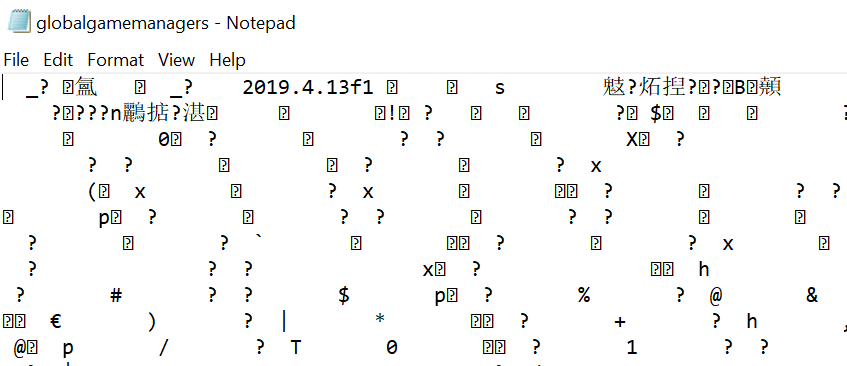
Check the version of Unity of the game. Open the file <game root folder>\<game name>_Data\globalgamemanagers.assets with notepad, the version of Unity will be shown at the beginning.
Step 2
Go to https://unity.com/releases/editor/archive and download the correct version of Unity. Install it.
Step 3
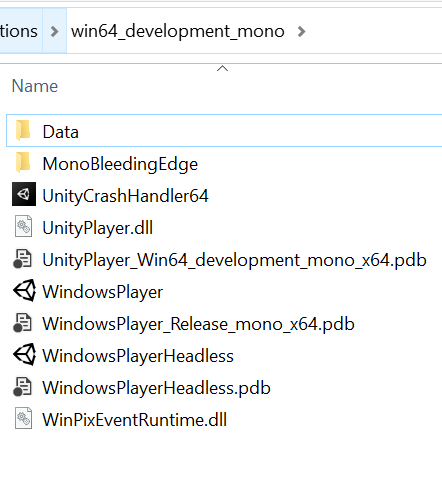
Go to <Unity root>\Editor\Data\PlaybackEngines\windowsstandalonesupport\Variations\win32_development_mono if the game is 32bit, otherwise go to <Unity root>\Editor\Data\PlaybackEngines\windowsstandalonesupport\Variations\win64_development_mono.
- Copy
Data\Managedfolder to the corr. folder of the game. - Copy
WindowsPlayer.exeandUnityPlayer.dll. Rename to<GAME_NAME>.exe. - Copy
<Unity root>\Editor\Data\MonoBleedingEdge\bin\mono-2.0-bdwgc.dlto<GAME_NAME>\MonoBleedingEdge. - Create of edit
boot.configand ensure the lineplayer-connection-debug=1presents.
Step 4
Download this de4dot fork and compile it locally by Visual Studio.
Step 5
Run de4dot.exe -f Assembly-CSharp.dll -o <output dll location> -fpdb. Remove the output pdb file.
Step 6
Load the output dll into dotPeek.
- Right click on the output dll and select
Export to Project - Check the box
Create *.pdb file - Export
Step 7
Run the following command:
"%UNITY_MONO%\bin\mono.exe" "%UNITY_MONO%\lib\mono\4.5\pdb2mdb.exe" "<target_assembly_dll>"
where "%UNITY_MONO% is equal to <Unity root>\Editor\Data\MonoBleedingEdge.
You will get a .mdb file. Now you can debug with dnSpy the dll located in the same folder.